 |
|

|
To crop
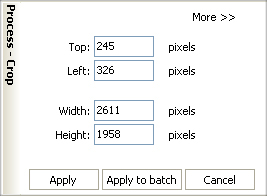
If you would like to get rid of some unwanted objects in the background, or need just a part of a picture, you can Crop it. You may choose Edit - Crop at the Menu bar or click Image transformations at the Process toolbar and choose Crop. Here is the Crop option screen:
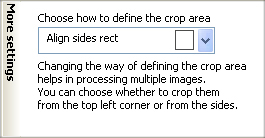
Use the Crop option to crop images/photos from the top, from the left side, or to the specified width and height. Additional settings available for the Crop option are primarily helpful for batch image/photo processing, and allow to choose whether to crop multiple images from the top left corner or from the sides:
Click Apply you want to apply changes to one file. If you don't like effect, use CTRL+Z combination or Edit -> Undo from the menu bar to move back to the original image. Choose the quality of the output JPEG file:
And click Save. |
[an error occurred while processing the directive] |



|
reaConverter Online
 reaConverter Web
Downloads
ReaSoft Store
Technical Support
Contact Us
Site Map
reaConverter Web
Downloads
ReaSoft Store
Technical Support
Contact Us
Site Map
Copyright © 2001-2026 ReaSoft Development.
All rights reserved. Use of this website signifies your agreement to the Online Privacy Policy. |