reasoft
site map storedownloads
Color and tone correction with ReaJPEG
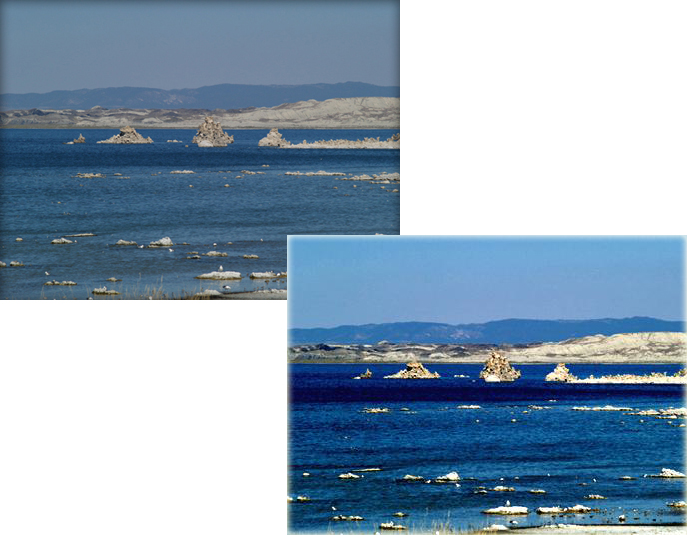
In this tutorial you will see how you can fix color and tone problems of the photo quickly and easily. Here is the sample

The source image is dark, lack contrast and has a grey color cast. After being corrected the image looks bright and sunny. Below is the step-by-step description of the method.

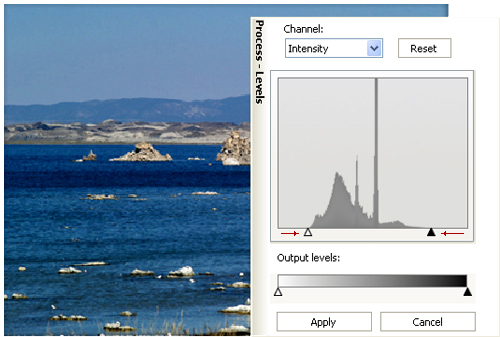
  1. First of all we will add some intensity to the image with the help of levels dialog box. To achieve the greatest effects we cut the edges of levels diagram. This action allows to correct the color of shadows and highlights.

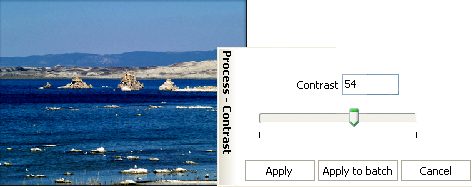
  2. Then to make image more contrast we will use contrast dialog box. This command adjusts the grayscale value of the output channel. Positive values add more white color so it will help to make the image brighter.

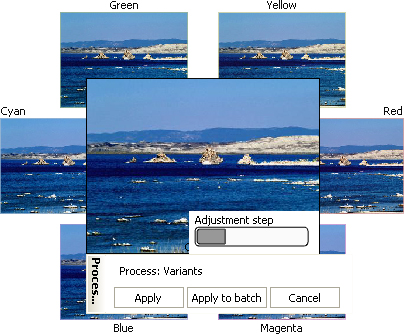
  3. And at the end we will add some blue color with the help of variants dialog box. After the action was applied blue color on the image looks more saturated.

You've seen the way to adjust the color and tonal values in your image. For the best result please try different values of the parameters we changed.


affordable and business-ready solutions
For fastest service you can purchase ReaJPEG from our secure online store:
  • Online Store


  • ReaJPEG photo editor additional info
  • Features
  • Screenshots
  • Supported formats
  • Technical Support
  • Online help file
  • Download
  • Buy Now!
  • Downloads ReaSoft Store Technical Support Product Forums Contact Us Site Map

    Copyright © 2001-2010 ReaSoft Development.
    All rights reserved.
    Use of this website signifies your agreement to the Online Privacy Policy.
    Add to: Del.icio.us Add to: Digg Add to: Reddit Add to: StumbleUpon Add to: Slashdot Add to: Netscape Add to: Yahoo Add to: Google